
Meetings & Public Engagement
Suprata Captioning
Send any recording and get human-checked captions and transcripts back on a clock, with a searchable library, usage reports and monthly billing by department.
Overview
What Suprata Captioning does
Suprata Captioning is a portal for ordering, tracking and managing captions. Anyone in your organization can upload a recording or paste a share link. They pick a language and the caption files they need, and the request starts a turnaround clock right away. Each request moves through clear stages, from a machine first draft to a human edit and then a quality check with an accuracy score. Nothing is released until it meets the accuracy bar. When it is ready, the requester is notified and can download captions for every major video platform, plus a plain-text or Word transcript.
Every delivered recording goes into a searchable library, so anyone can find a word, a speaker or a topic and jump to that moment in the video. Managers see open and overdue requests, on-time delivery rates, minutes used by department and month, and one invoice per department per month, with spreadsheet downloads. An in-browser caption editor lets your own staff fix a name or a timing after delivery, and every save is kept as a version. Live captioning for meetings and events can be booked from the same place. An activity log records who did what and when.
Who it’s for
Built for organizations like yours
Captioning fits a wide range of organizations. Hundreds of organizations already run their work on the Suprata platform.
- Cities, towns and counties that post council, board and public meetings online
- State agencies and departments that need accessible video for the public
- School districts, charter networks and education agencies
- Colleges and universities (lecture capture, disability services, online courses)
- Courts and legal offices that need transcripts of hearings and recordings
- Hospitals, clinics and public health departments (patient education and training videos)
- Nonprofits and associations producing webinars and member training
- Utilities and transit agencies with public meetings and safety videos
- Libraries and museums
- Private businesses with training, marketing or internal video
- Media producers, podcasters and event companies
- Captioning and transcription service providers that need a client portal with billing
- Any organization that must meet accessibility rules for its video
Features
Everything Captioning can do
60 capabilities in 9 areas. Every one of them can be shaped to your rules.
Sending a recording
- Upload an audio or video file from the browser (MOV, WMV, M4V, AVI, FLV, MPEG-2, MPEG-4, MP3, WAV, M4A, WebM, OGG)
- Or paste a share link from Dropbox, Google Drive, FileDrop, Sync or YouTube, and staff pull the file
- The real length and format of uploaded files are detected on receipt, and unreadable files are rejected
- Formats a browser cannot play get a converted preview copy automatically
- Choose the language: English, Spanish, French, German, sign language interpreted, or two-language mixes
- Choose the files to get back: SRT, WebVTT, SCC, DFXP and transcript
- Notes to the caption team for speaker names and tricky spellings
- Each request is tagged to a department or office and gets a reference number
- A 'what happens next' panel explains the five stages to the requester
- A received notice is sent to the requester
Turnaround clock and tracking
- A live countdown on every request, which turns amber when close and red when overdue
- A five-step progress tracker: received, first-pass draft, human edit, quality check, delivered
- Delivered requests show on time or late and the hours taken
- Request list with search by title, number or sender, and filters by status, overdue and office
- Dashboard tiles for open requests, due soon, overdue, on-time rate for the last 90 days, and minutes used this year
- A timeline of every step on each request
Caption team workflow (staff)
- A work queue sorted by due time and grouped by stage, with a count badge in the menu
- Pull the file from a share link, then create the first-pass draft
- An editor claims the draft and starts the human edit
- Send to quality check, or return the file to the editor
- The quality reviewer counts errors and accuracy is worked out from the word count
- Files under 99% accuracy cannot be released
- Release delivers the file, records accuracy, builds search data and notifies the requester
- Edit requests from departments after delivery show in the staff queue and can be marked done
- Retag a request to a different office, which changes who is invoiced
In-browser caption editor
- The video plays beside the caption list, with the current caption shown over the picture
- Edit text, start and end times, speaker label and language for each caption
- Click a time to play from that caption, and use 'set start' and 'set end' from the playhead
- Keyboard shortcuts to play or pause and to skip back or forward 3 seconds, plus playback speed
- Add, delete, split and join captions, and revert a caption to its draft text
- Find and replace across the whole file
- Undo, with a warning before leaving with unsaved changes
- Each caption is checked live for line length (32 characters, 2 lines), reading speed (21 characters a second) and minimum time on screen
- Captions changed from the machine draft are marked
- Every save is kept as a version showing who saved it and when
- Departments can make their own corrections after delivery, and downloads update at once
Delivered files
- Downloads in SRT, WebVTT (with speaker tags), SCC broadcast captions, DFXP/TTML, a plain-text transcript and a Word transcript
- All files are built from the saved captions, so any edit flows into every format
- The request page plays the recording with its current captions turned on
- Search data for each recording: keywords, topics, speakers, languages and chapter markers that jump to that point in the video
- Ask the caption team for a change on a delivered file
Searchable library
- One search across titles, senders, speakers, keywords, topics and full transcript text
- Matching lines are highlighted with their time, and clicking one jumps to that moment in the video
- Filter by office and by language (for example, recordings that include Spanish)
Live captioning
- Book a live captioner for a meeting or event on Zoom, Microsoft Teams, Google Meet, YouTube Live or an audio feed
- Requires at least two business days of notice, enforced on booking
- Staff confirm a captioner, and sessions show requested, confirmed or completed
Usage reports and billing
- Minutes used by office, by month and by contract year, with bar charts and tables
- Progress against a yearly planning estimate of minutes
- On-time rate and average hours to deliver
- Download usage as a spreadsheet
- Minutes billed by recording length, rounded up to the tenth of a minute (a setting)
- Generate one invoice per office per month from delivered requests, safely re-runnable
- Invoice view with each recording, minutes and amount; print or save as PDF; spreadsheet download
- Invoice status (draft, sent, paid) and send to the office's billing contact
- Department users see only their own office's requests, usage and invoices
Oversight, roles and security
- Four roles: department user, contract manager, caption editor and quality reviewer, each with its own menu
- Activity log of every receipt, edit, download, score, release and retag, showing who and when
- Notification outbox showing every notice the system sent
- Department users are limited to their own office's recordings
Screens
See Captioning at work
Real screens from the working copy, filled with made-up sample data. Click any screen to enlarge it.
How it fits
One platform underneath
Suprata is a versatile workflow and business intelligence platform that delivers the power of custom software with ease and affordability. Captioning is built on it, so it shares the same engine, records and controls.
Workflow & automation
Approvals, work queues, reminders and rules move every Captioning request forward without anyone chasing it.
Business intelligence
Live dashboards for every role and custom reports built from your Captioning data, with an AI report builder.
Customer portal
The people you serve sign in to apply, book, pay, upload documents and check status, day or night.
Payments & billing
When Captioning takes money, card and bank payments, invoices and refunds land in one ledger.
Integrations & API
A documented API, webhooks and exports connect Captioning to the systems you already run.
Click around a working copy
The working copy of Captioning is filled with realistic, made-up data. There is no sign-up and no password. Pick a role and explore. Your changes stay in your own copy.
Related
Often used together
 Meetings & Public Engagement
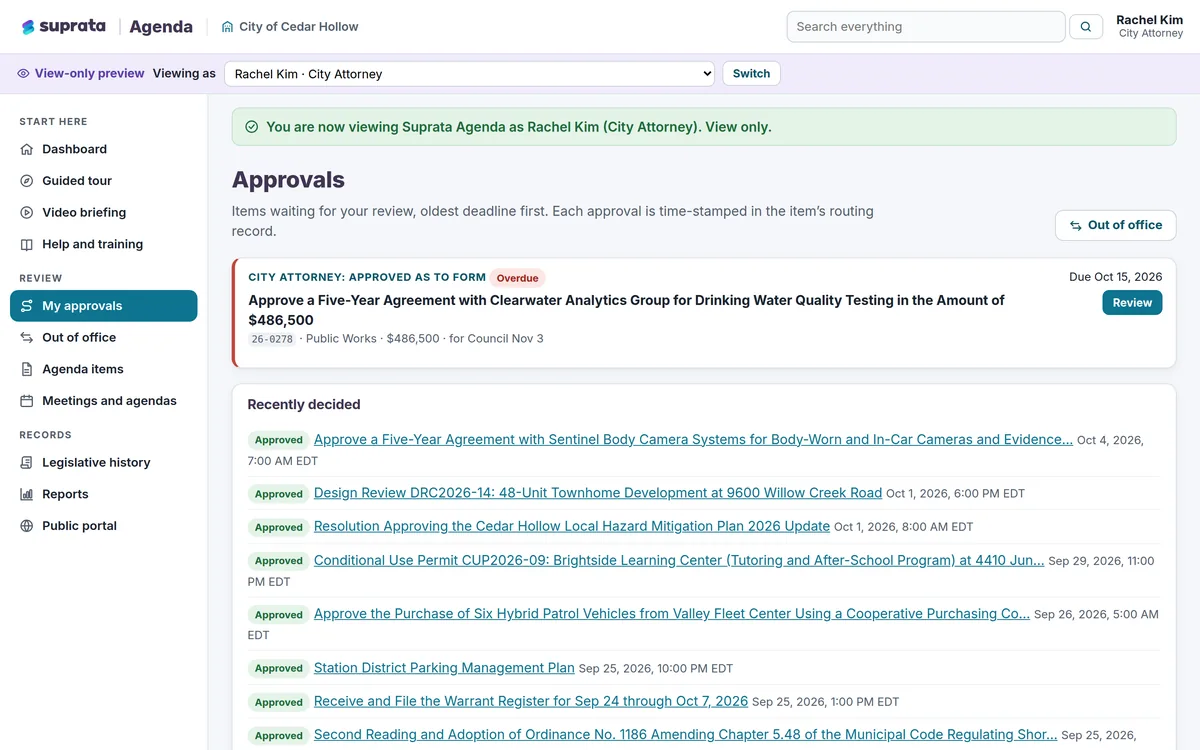
Suprata Agenda
Agendas, staff reports, packets, live votes, meeting video and minutes in one system, with a public portal residents can actually use.
Learn more
Meetings & Public Engagement
Suprata Agenda
Agendas, staff reports, packets, live votes, meeting video and minutes in one system, with a public portal residents can actually use.
Learn more
 Meetings & Public Engagement
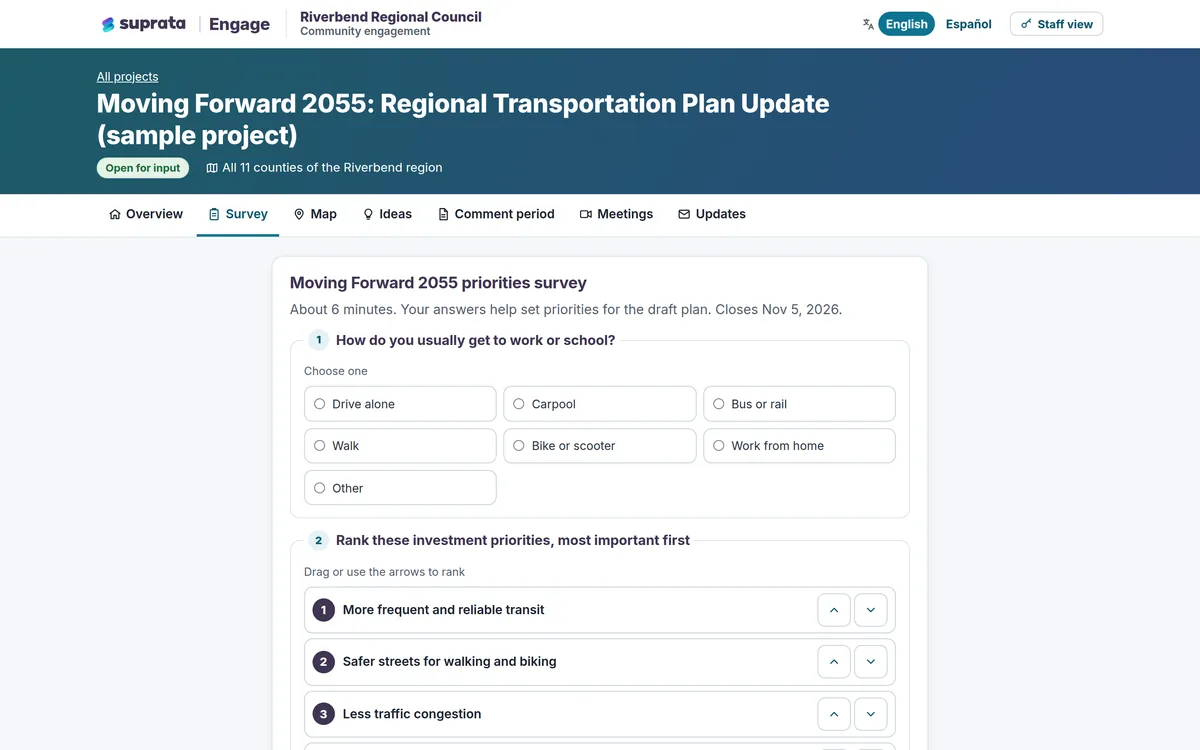
Suprata Engage
Hear from more of your community with surveys, maps, idea boards, online meetings and formal comments, and turn the input into clear reports.
Learn more
Meetings & Public Engagement
Suprata Engage
Hear from more of your community with surveys, maps, idea boards, online meetings and formal comments, and turn the input into clear reports.
Learn more
Pricing
Ask about pricing for Captioning
Every organization is different, so we price Captioning around your size and needs. Tell us what you run and we’ll come back with a clear number.